Features — Message Templates

Write it. Get it approved.
Know how it did.

Every WhatsApp marketing message goes out from a template Meta approved in advance. Rapio takes you from first draft to approval, then shows which message actually gets people to tap.

Templates Editor

Create, submit, and follow every template to approval.

Write the message with a live phone preview beside it, add a picture or a video from your library, put the buttons in, and send it to Meta for review from the same screen. From then on the editor tells you where every template stands — in review, approved, rejected, paused — with the reason and the next step, so nothing waits on a guess.

See it in action
Content
A header, the message, a footer, and the buttons people can tap.
Header · optional
Buttons · optional
What they'll see
Guided creation

Header, message, footer and buttons, one step at a time. Add the customer's name, an offer code, a Shop now button or a link to your app, and see it on a phone before Meta does. Tracking tags for website links come in one click.

A status you can act on

Rejected? Edit it and send it back. Paused? Lift the pause. Every status comes with its reason and its fix, and every change Meta makes lands in Template Updates as it happens.

One page per template

Content as people see it, update history, lifetime numbers and the campaigns that use it — with the edit button right there.

Templates Analytics

Find out which message
actually works.

Two templates say the same thing in different words, and one gets twice the taps. Templates Analytics puts delivered, read and clicked for every template side by side, with what each tap cost — for any period you choose, however far back you look.

Learn more
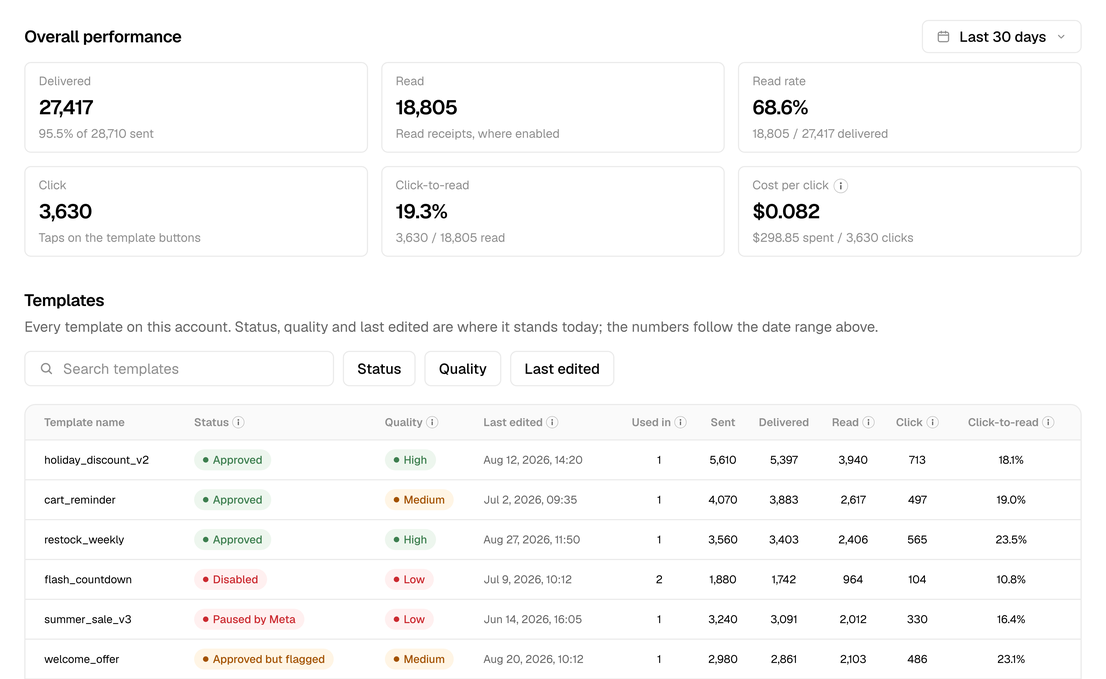
Templates Analytics: delivered, read, click and cost per click for the period, and every template compared in one table
Any period, kept for good

Meta forgets reads and taps after a week. Rapio keeps them, so last quarter's templates read the same as last week's, and the summary at the top always matches the table beneath it.

Cost per click, honestly counted

What Meta charged for a template, divided by every tap it collected — website buttons and quick replies alike. The same figure in the summary and in the row, with no second definition hiding behind it.

Compare, then decide

Status, quality and the numbers on one row. Filter, compare, and know which template to send next — and which one to retire.
Media Library

Upload creative once.
Use it in every template.

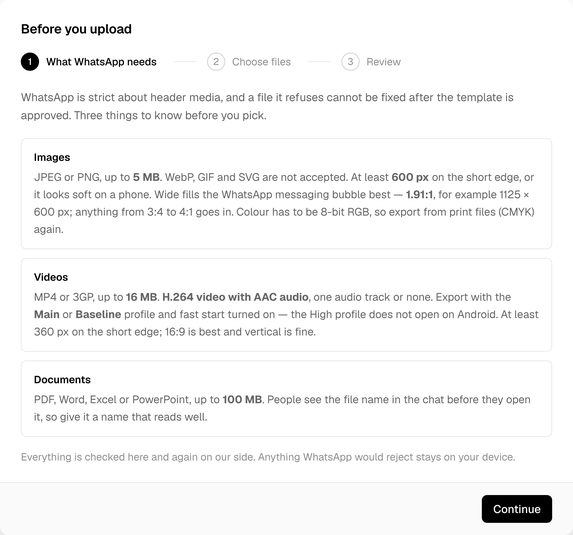
Images, videos and documents live in one place. Every file is checked the moment it arrives — size, format, and how it will sit in the WhatsApp message bubble — so a template never fails review over a picture that was the wrong shape. Pick from the library while writing a template, and use the same file as often as you like.

Learn more
The Media Library upload guide: what WhatsApp accepts for images, videos and documents, checked before a file goes in
Checked before it costs you a review

Too large, the wrong format, an image WhatsApp would crop — flagged at upload, in plain words, with what to change.

Ten files at a time

Drop in a batch, read each file's result, keep the ones that pass. Nothing you already uploaded goes anywhere while you add more.

Reuse without re-uploading

One file, any number of templates. Remove it from the library later and the templates that use it keep working.

Your next template,
approved.

Write it, get it approved, and know what it did.